n8n - Step by Step Guide
Visual guide to setting up the n8n Fideltour node from scratch: installation, credentials, a first workflow that queries HotelDataHub, and a workflow that starts automatically from a Fideltour webhook. The full reference for resources, operations and events is on the n8n page.
Table of contents
- Before you start
- 1. Install the community node
- 2. Create the Fideltour API credential
- 3. First workflow: look up a contact
- 4. Workflow with a trigger: react to a created contact
- 5. Check the subscription in HotelDataHub
- Common issues
Before you start
You need:
- An n8n instance (self-hosted or n8n Cloud) with admin permissions to install community nodes. The screenshots in this guide are from n8n 2.31.
- A HotelDataHub API user (
ApiUser) with thecontactsandmovementspermissions (andsegmentsif you'll use the audience triggers). Request it from hoteldatahub@fideltour.com along with the chain code (hotel_chain) and the hotel identifiers. - For triggers, the n8n instance must be reachable from the internet: HotelDataHub calls the n8n webhook URL every time an event occurs.
1. Install the community node
- In n8n, open Settings → Community nodes (gear icon, bottom left) and click Install a community node.
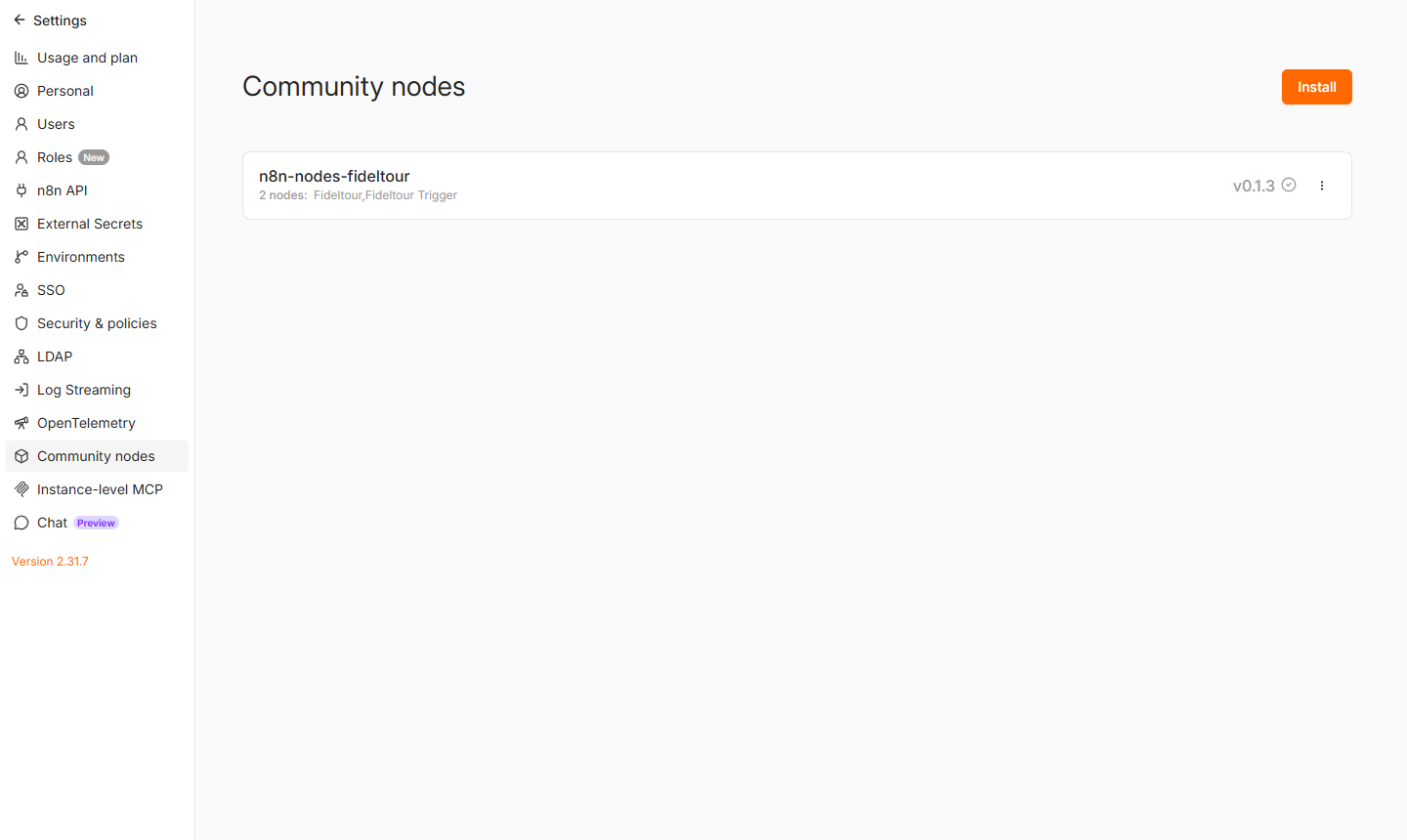
The screenshots in this guide show n8n's interface in Spanish, but the fields and buttons work the same way in English.
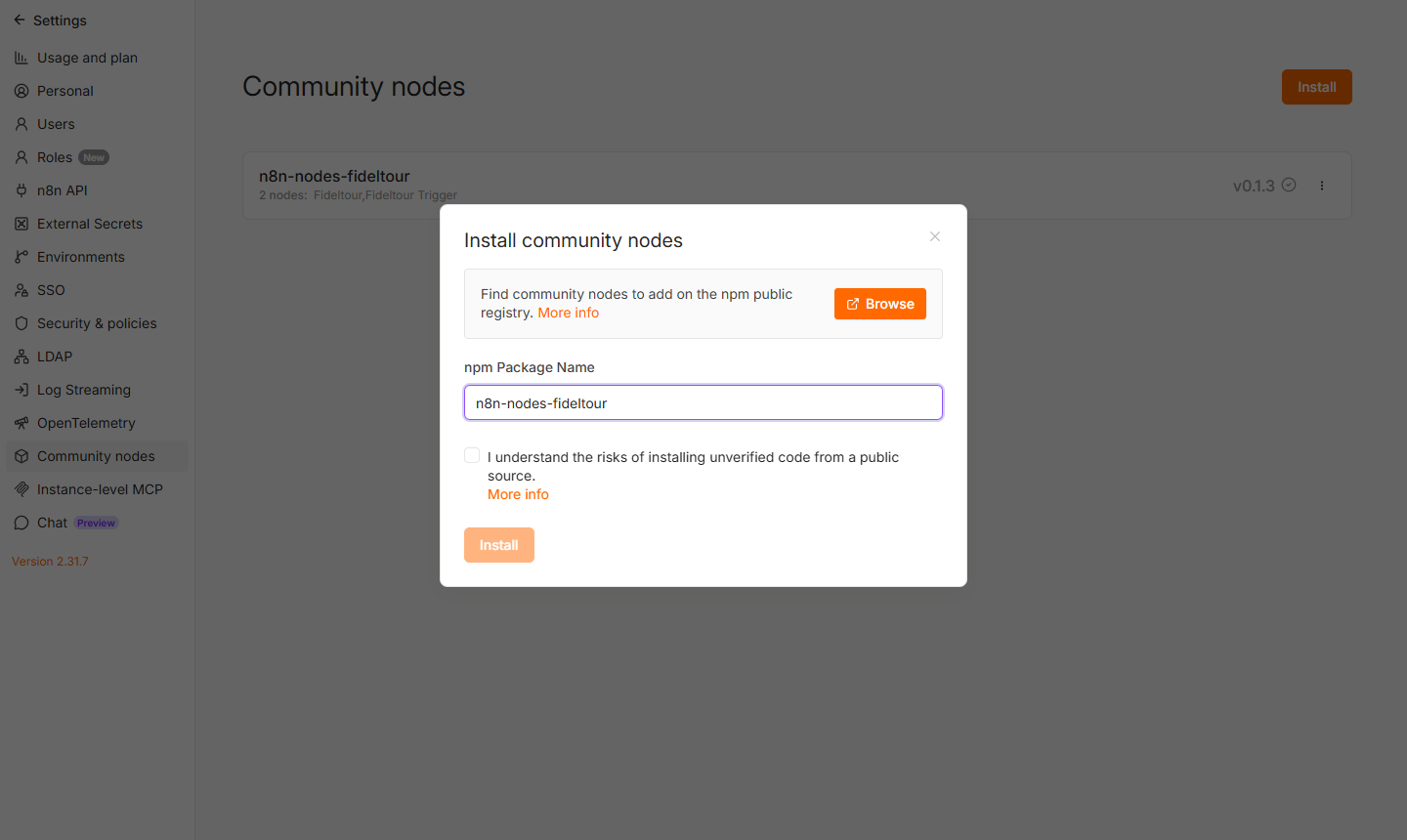
- Enter the package name,
n8n-nodes-fideltour, check the acceptance box and click Install. n8n downloads the npm package and registers the nodes without needing a restart.
Once done, the package appears in the list with its two nodes: Fideltour (actions) and Fideltour Trigger (events). To update to a new version, use the package's ⋮ menu → Update.
n8n Cloud: installation works the same way from Settings → Community nodes. If the package doesn't yet show as verified, the instance needs the unverified community nodes option enabled.
2. Create the Fideltour API credential
- Go to Credentials (from the Overview panel or the side menu) and click Create credential. Search for Fideltour API and click Continue.
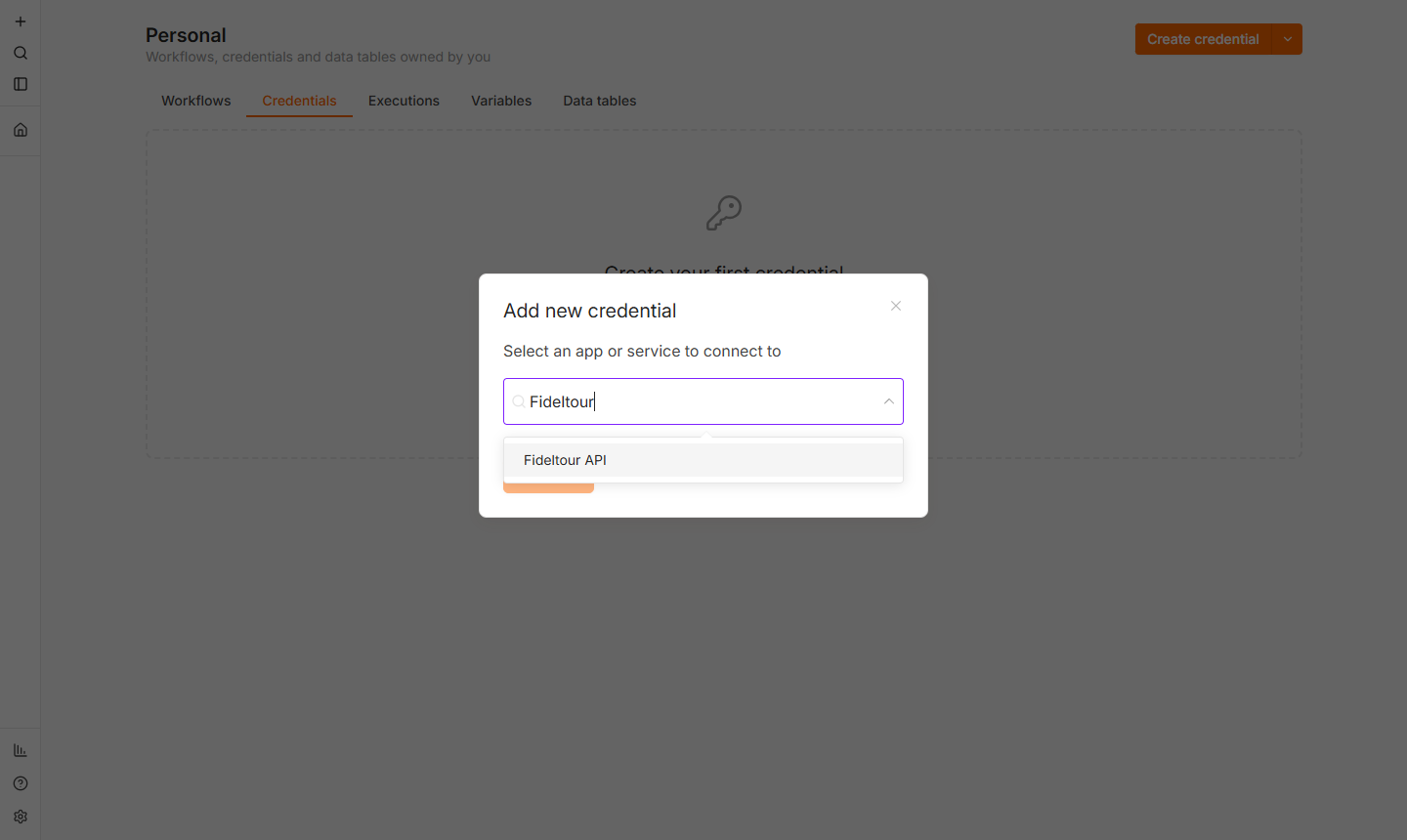
- Fill in the three fields:
| Field | Value |
|---|---|
| Base URL | https://app.hoteldatahub.io (no trailing slash) |
| Username | HotelDataHub API user |
| Password | API user's password |
The Session Token field is left empty: the node logs in against POST /api/v1/login/ and stores the JWT there, renewing it automatically when it expires (24h).
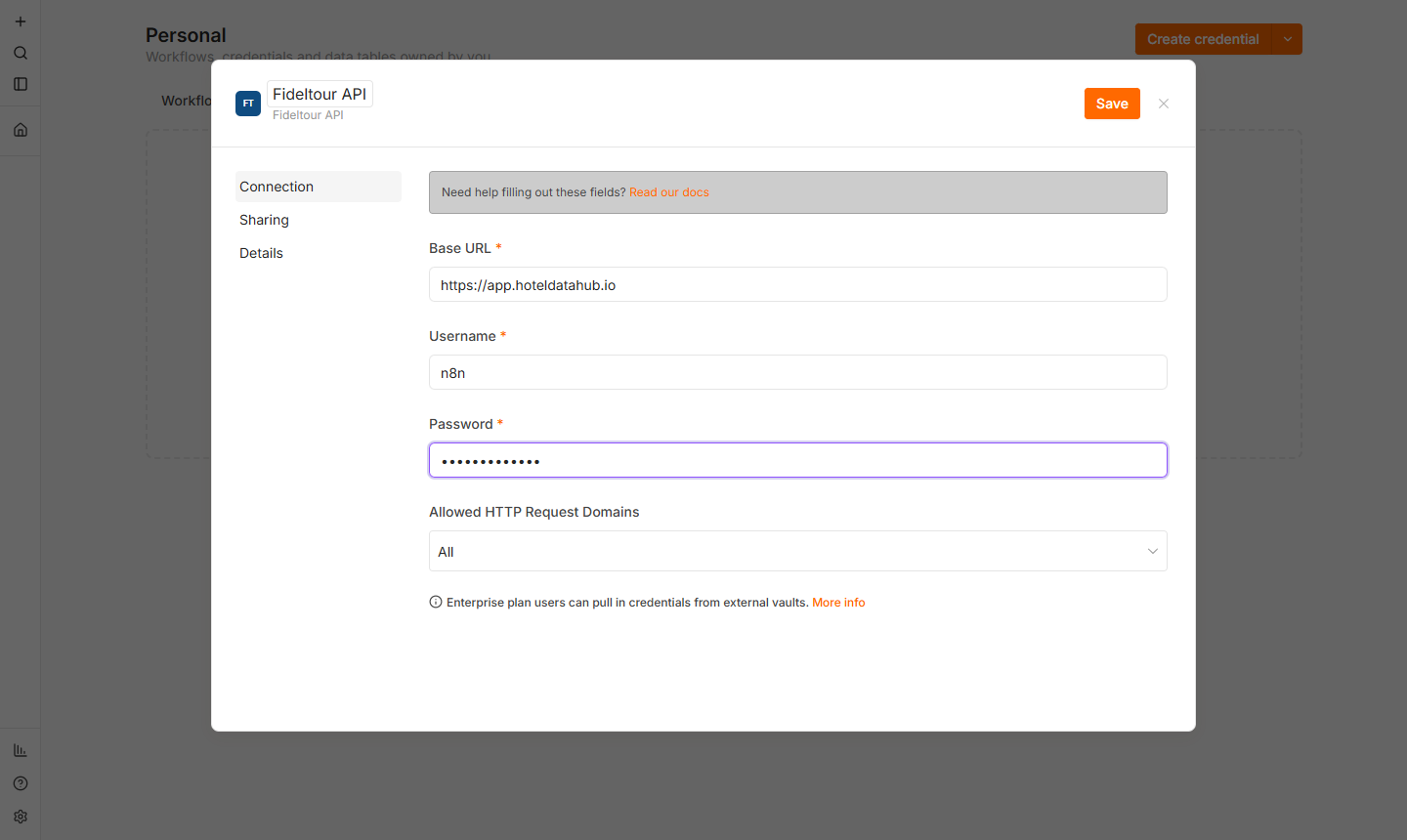
- Click Save. n8n tests the credential by performing a
GET /api/v1/entries/; if the username and password are correct and the user has themovementspermission, Connection tested successfully appears.
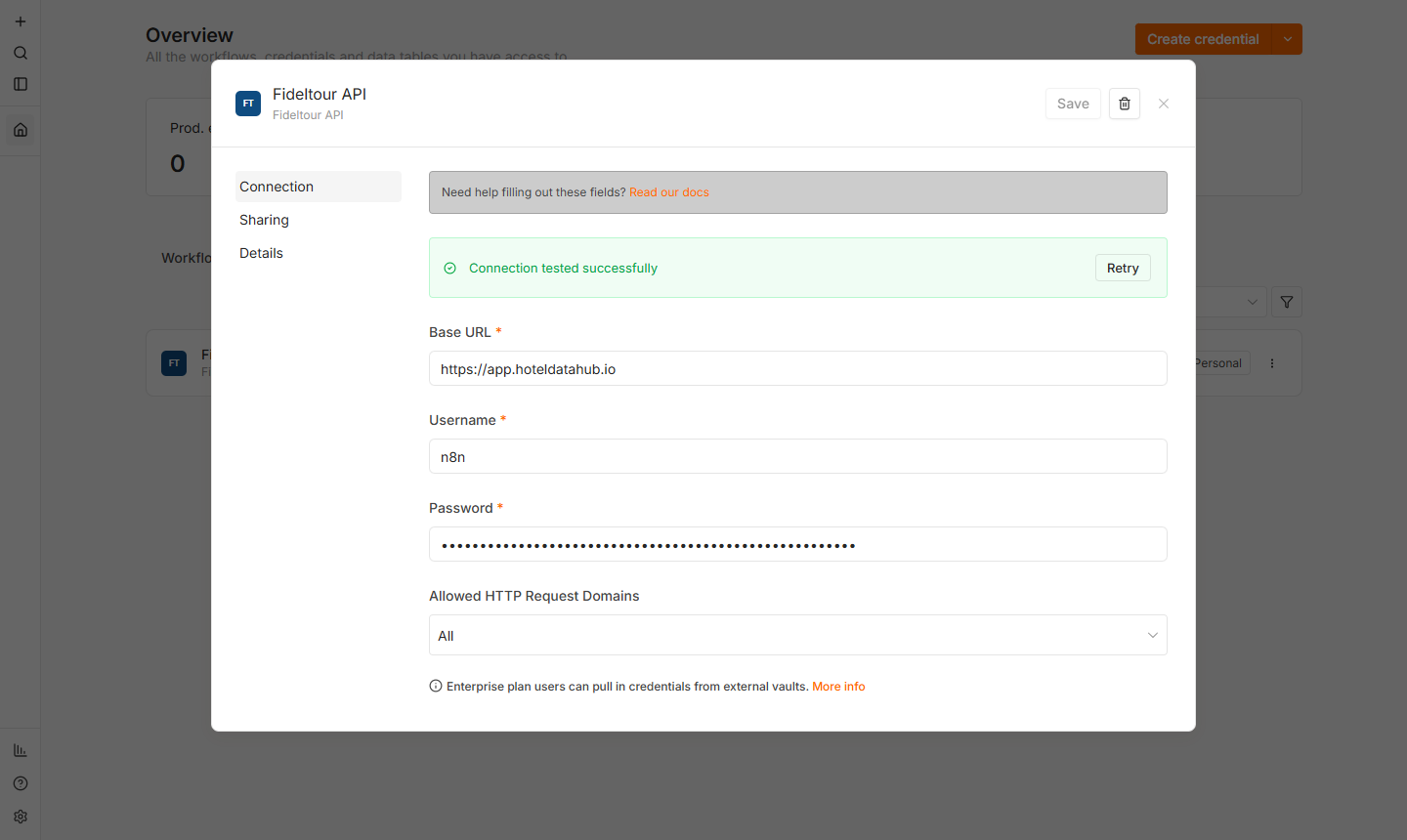
It's a good idea to name the credential Fideltour API: it's the name used by this guide's example workflows and by the n8n page, so they can be pasted in directly without reassigning credentials.
3. First workflow: look up a contact
Goal: a manual workflow that looks up a contact in HotelDataHub by their email. It's the fastest way to check that the installation and credential are working.
-
Create a new workflow (+ → Workflow) and add the Manual trigger as the first step (When clicking 'Execute workflow').
-
Click the + button (top right of the canvas) and search for
Fideltour. The node appears with the FT icon.
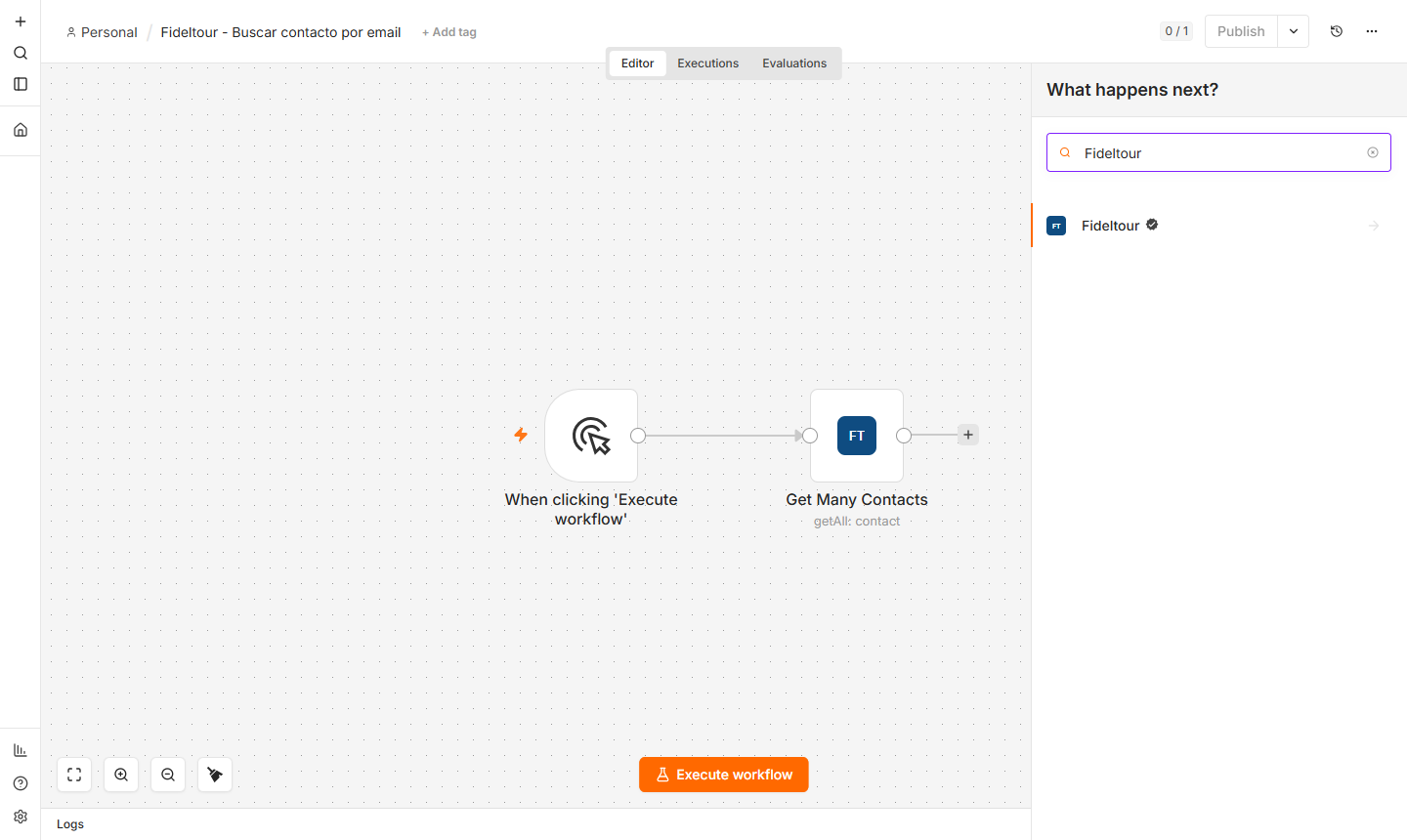
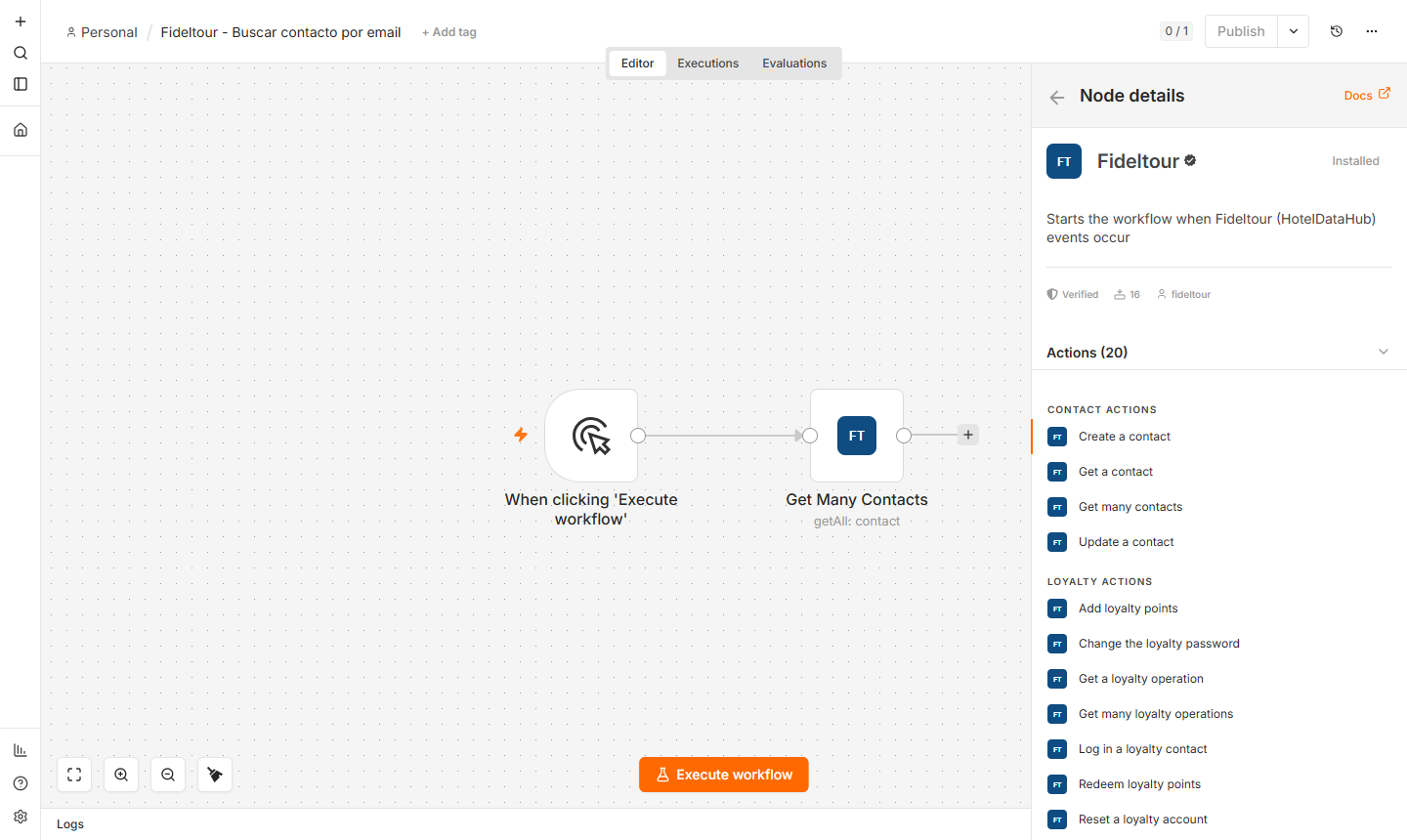
- Selecting it shows the actions grouped by resource (Contact, Loyalty, Movement, Web Form). Choose Get many contacts.
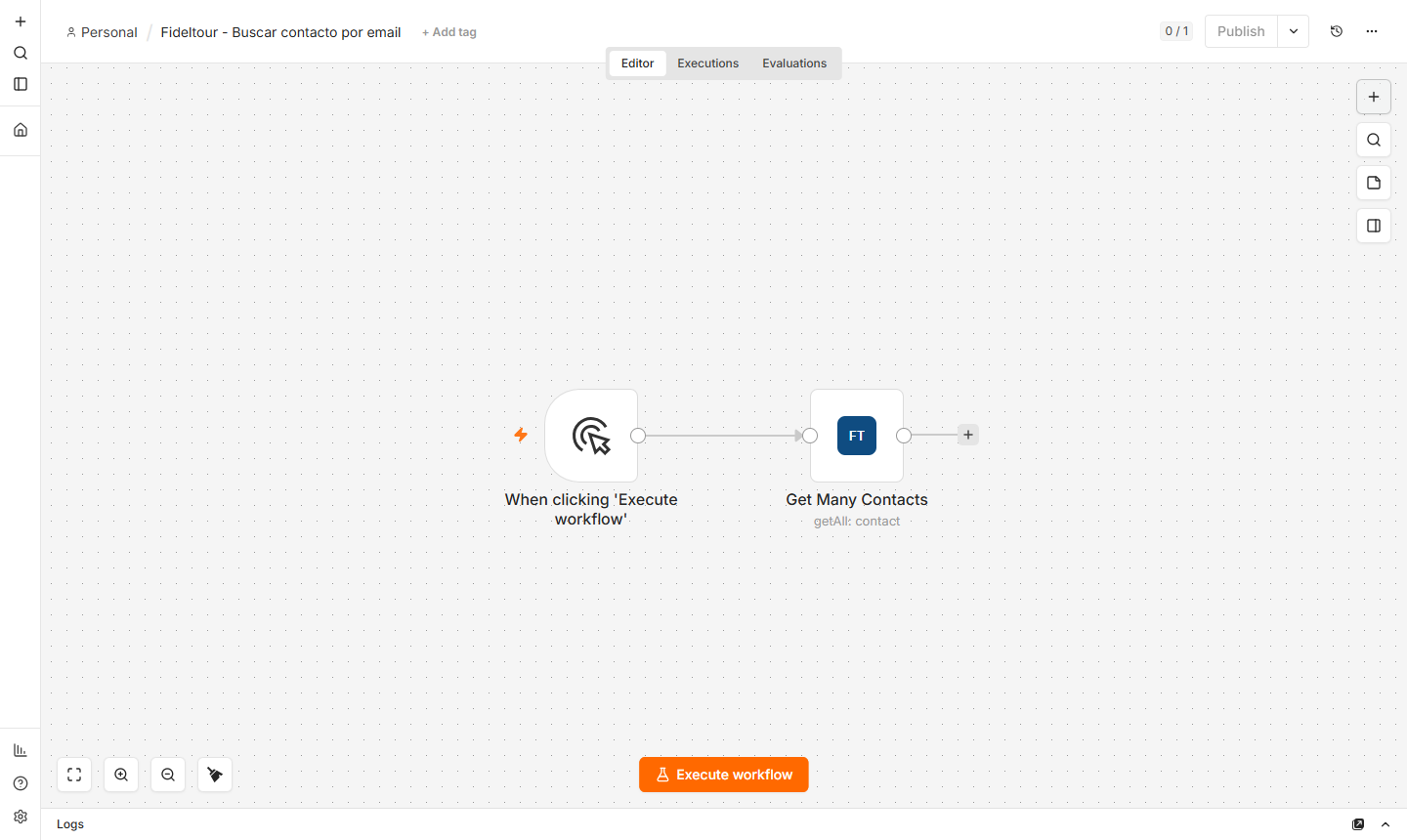
The node is now connected to the manual trigger:
- Configure the node: select the Fideltour API credential, leave Resource = Contact and Operation = Get Many, and under Filters add Email with the email to search for. Limit and Offset control pagination (the API's
limit/offset).
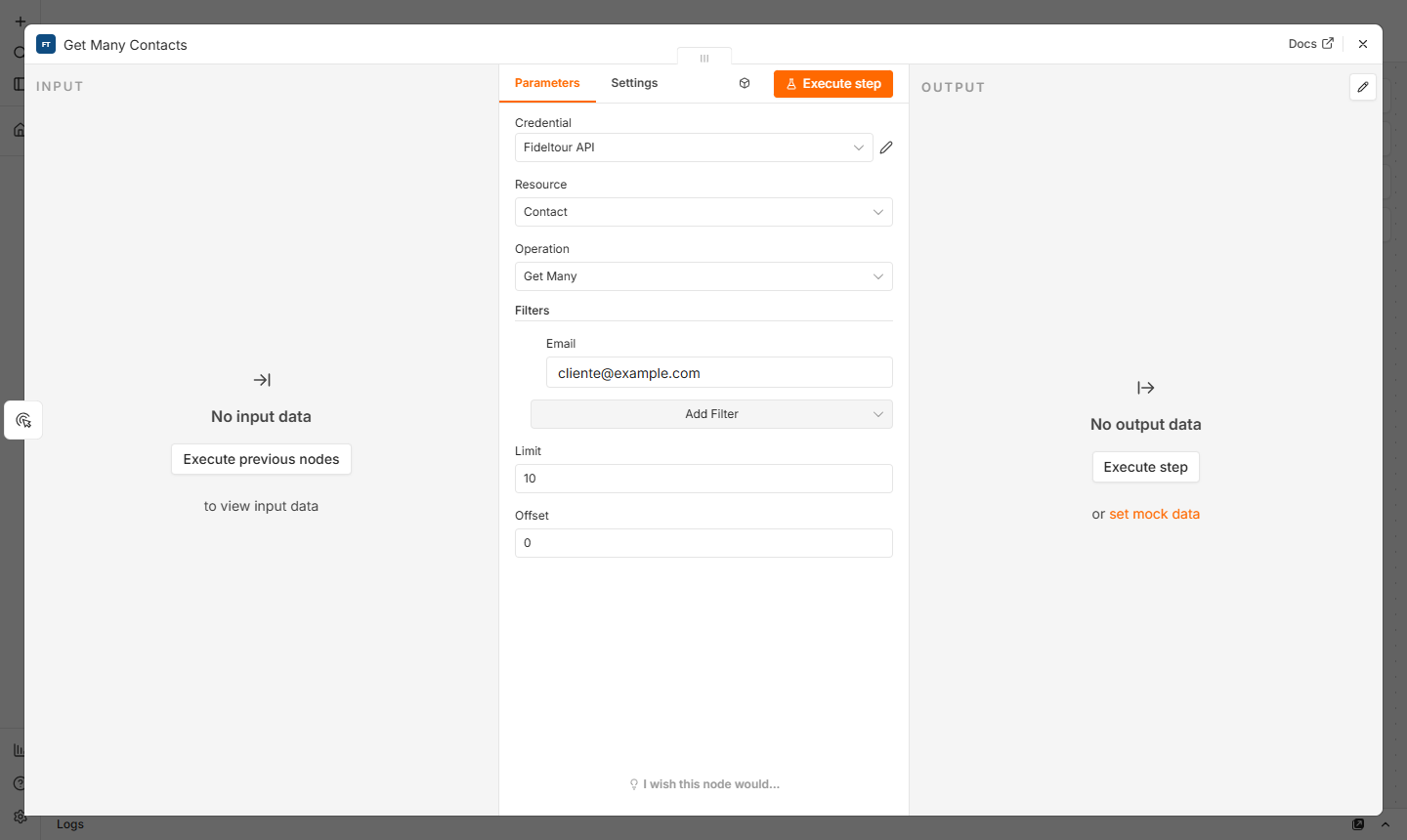
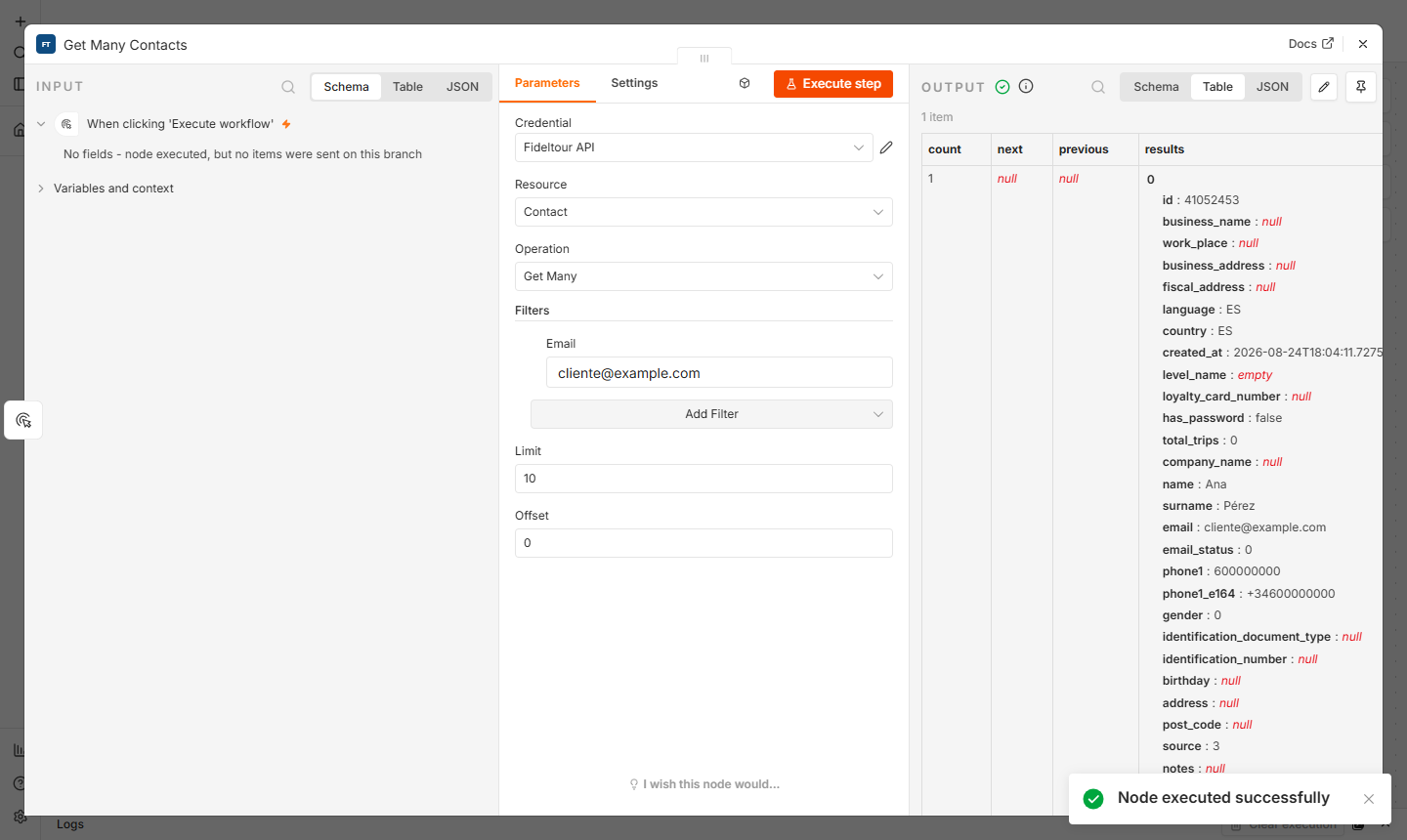
- Click Execute step. The output (OUTPUT) shows the
GET /api/v1/contacts/response:count,next,previousandresultswith each contact's full record (id, name, email, language, country, loyalty level, consents…).
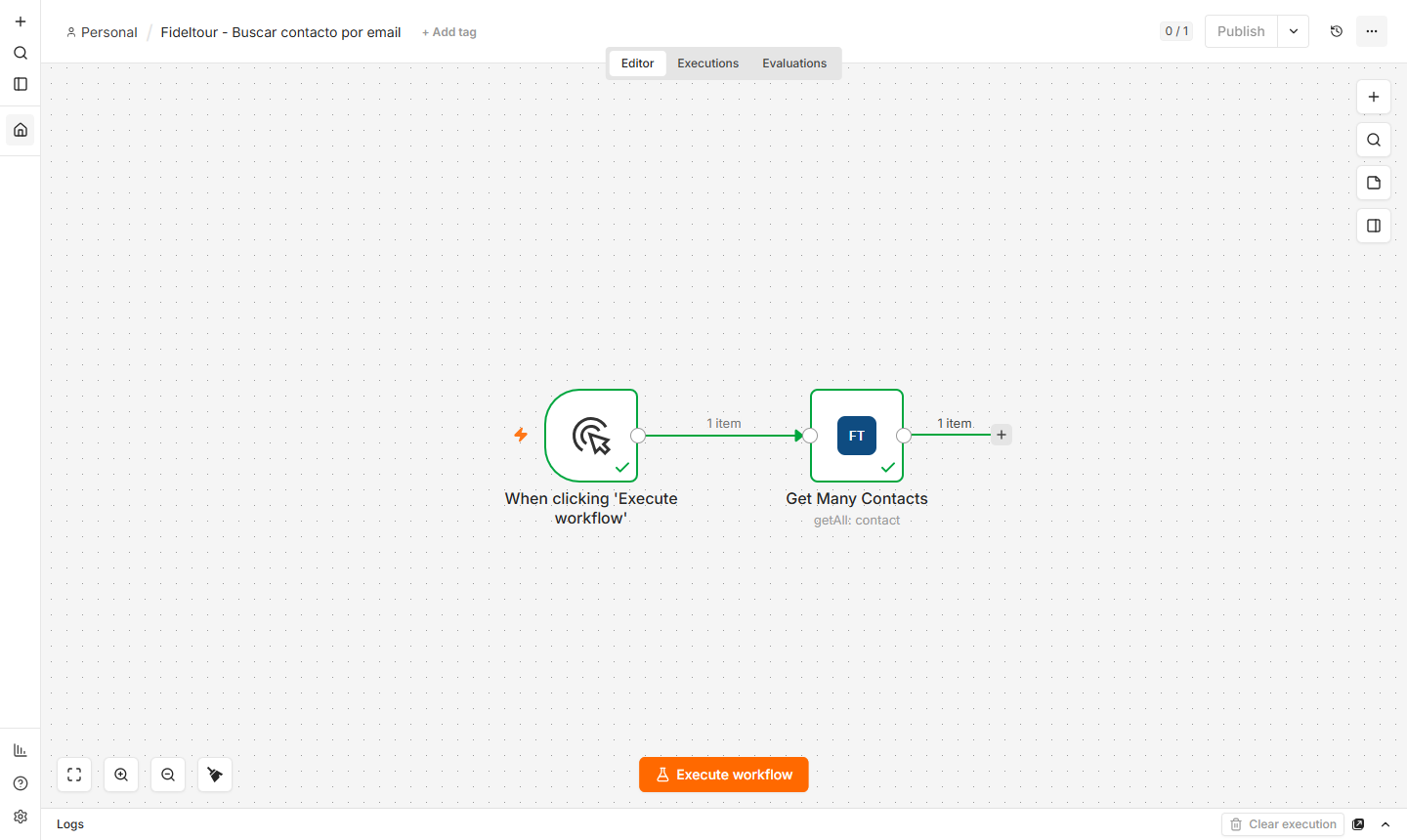
- When you close the panel, the canvas marks both nodes green with the number of items that passed through each connection.
The ID returned by this node (results[0].id) is what the rest of the operations need (Contact → Update, Movement → Create, Loyalty → Sign In…): reference it with an expression like {{ $json.results[0].id }}.
Full workflow (paste onto the canvas with Ctrl+V):
{
  "name": "Fideltour - Search contact by email",
  "nodes": [
    {
      "parameters": {},
      "type": "n8n-nodes-base.manualTrigger",
      "typeVersion": 1,
      "position": [0, 0],
      "name": "When clicking 'Execute workflow'"
    },
    {
      "parameters": {
        "resource": "contact",
        "operation": "getAll",
        "limit": 10,
        "filters": { "email": "cliente@example.com" }
      },
      "type": "n8n-nodes-fideltour.fideltour",
      "typeVersion": 1,
      "position": [260, 0],
      "name": "Get Many Contacts",
      "credentials": { "fideltourApi": { "name": "Fideltour API" } }
    }
  ],
  "connections": {
    "When clicking 'Execute workflow'": {
      "main": [[{ "node": "Get Many Contacts", "type": "main", "index": 0 }]]
    }
  }
}
4. Workflow with a trigger: react to a created contact
Goal: have n8n start a workflow every time a contact is created in Fideltour. The Fideltour Trigger node registers the subscription (REST hook) in HotelDataHub by itself when the workflow is published, and removes it when unpublished.
- Create a new workflow, click Add first step, search for
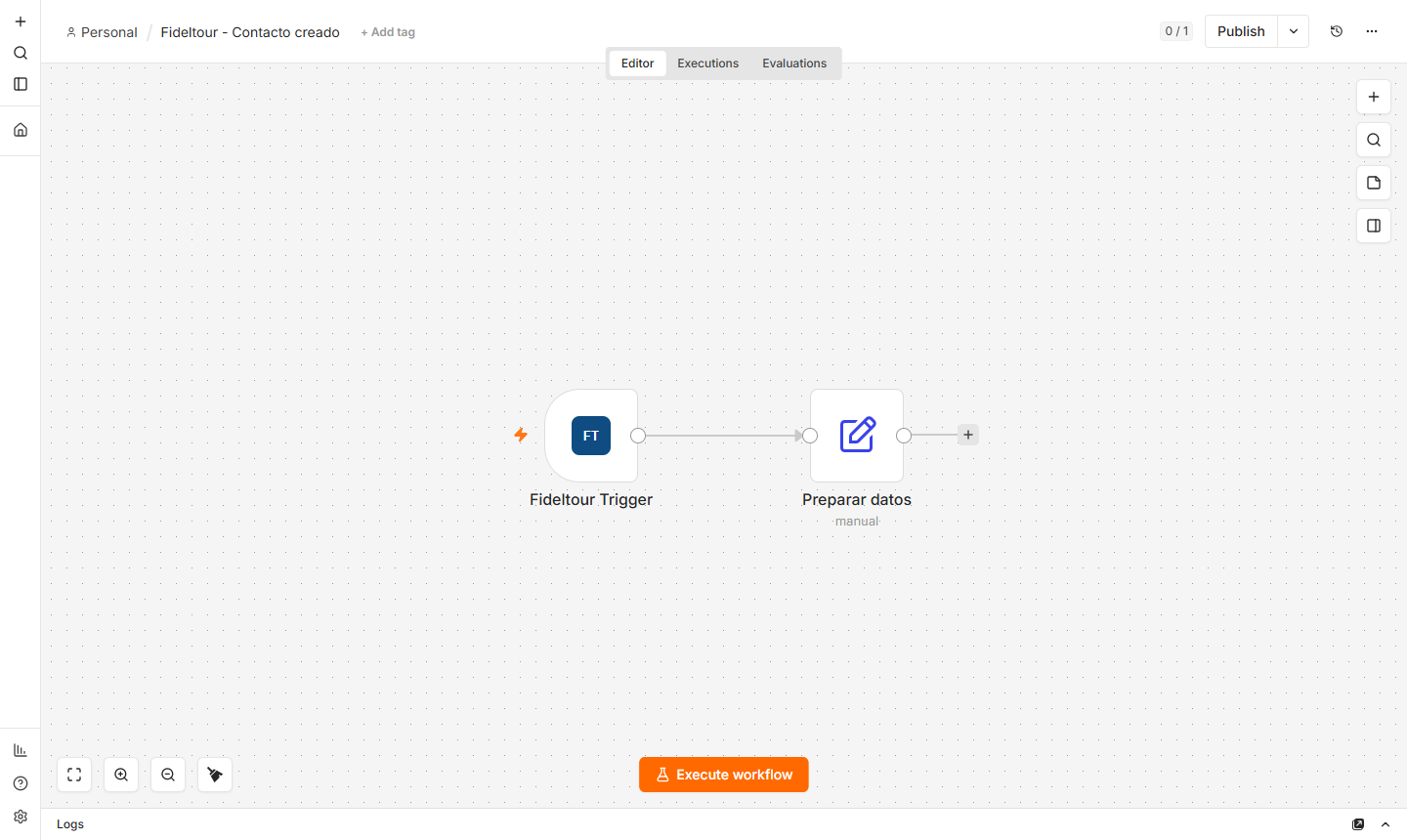
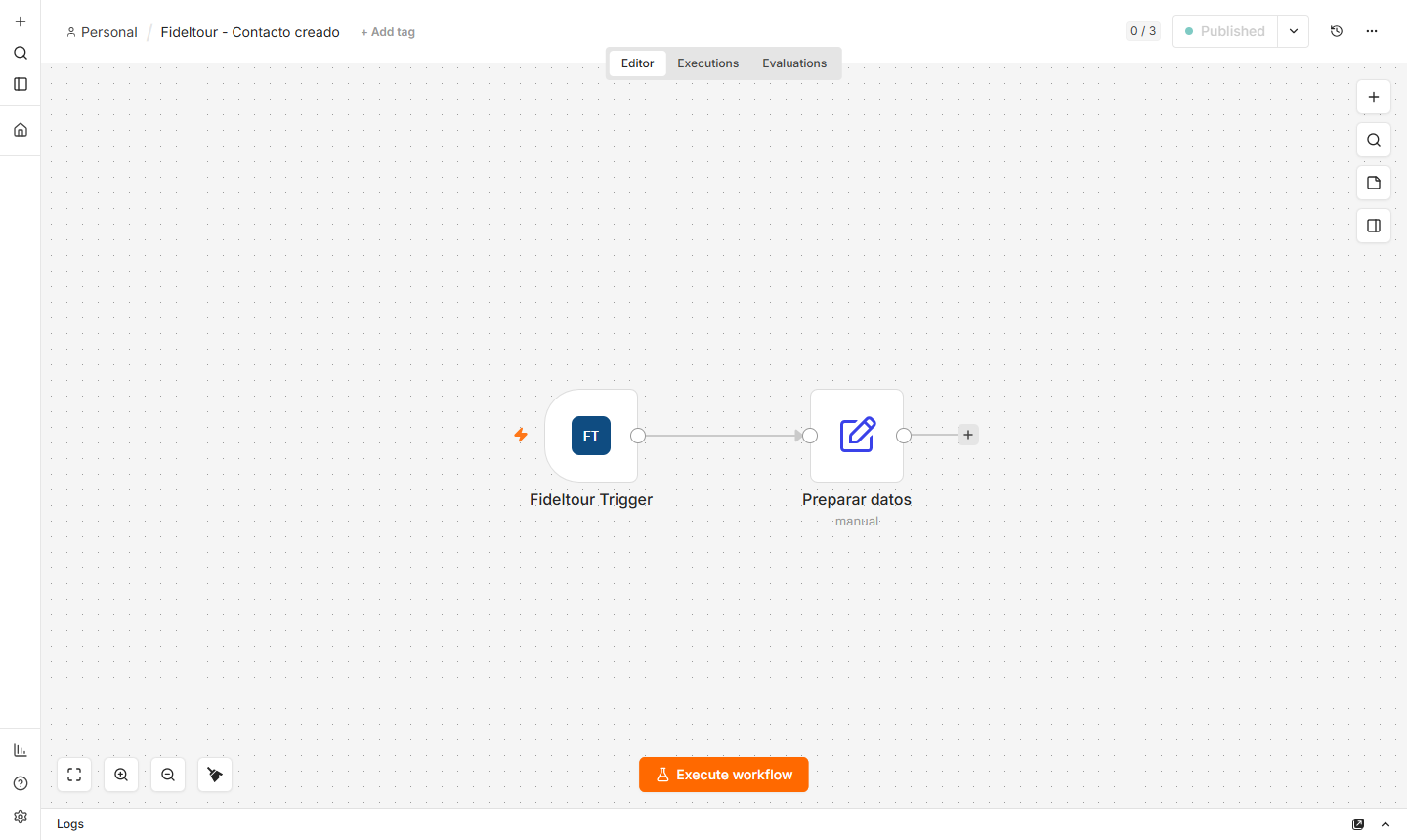
Fideltourand choose Fideltour Trigger (in the Triggers section). Then add any node that consumes the event; in the example, an Edit Fields node that prepares a greeting from the contact.
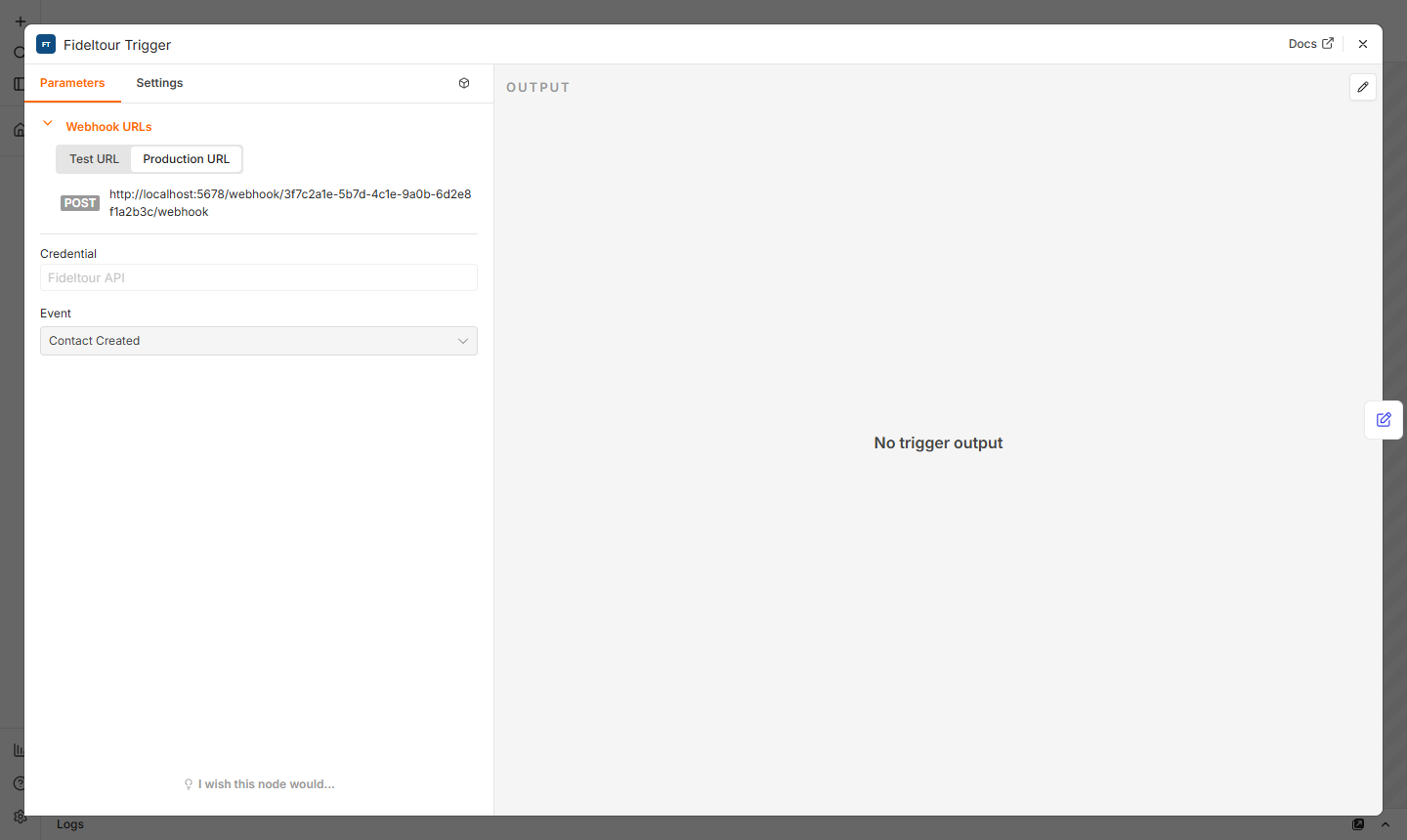
- Open the trigger, select the Fideltour API credential and the desired Event (here Contact Created). Expanding Webhook URLs shows the two URLs n8n exposes for this node:
- Test URL (
/webhook-test/...): only listens while Execute step / Test this trigger is active in the editor. - Production URL (
/webhook/...): the one the node registers in HotelDataHub once the workflow is published.
- Click Publish (in earlier n8n versions, the Active toggle). You'll be asked for a version name, and once confirmed, n8n activates the workflow.
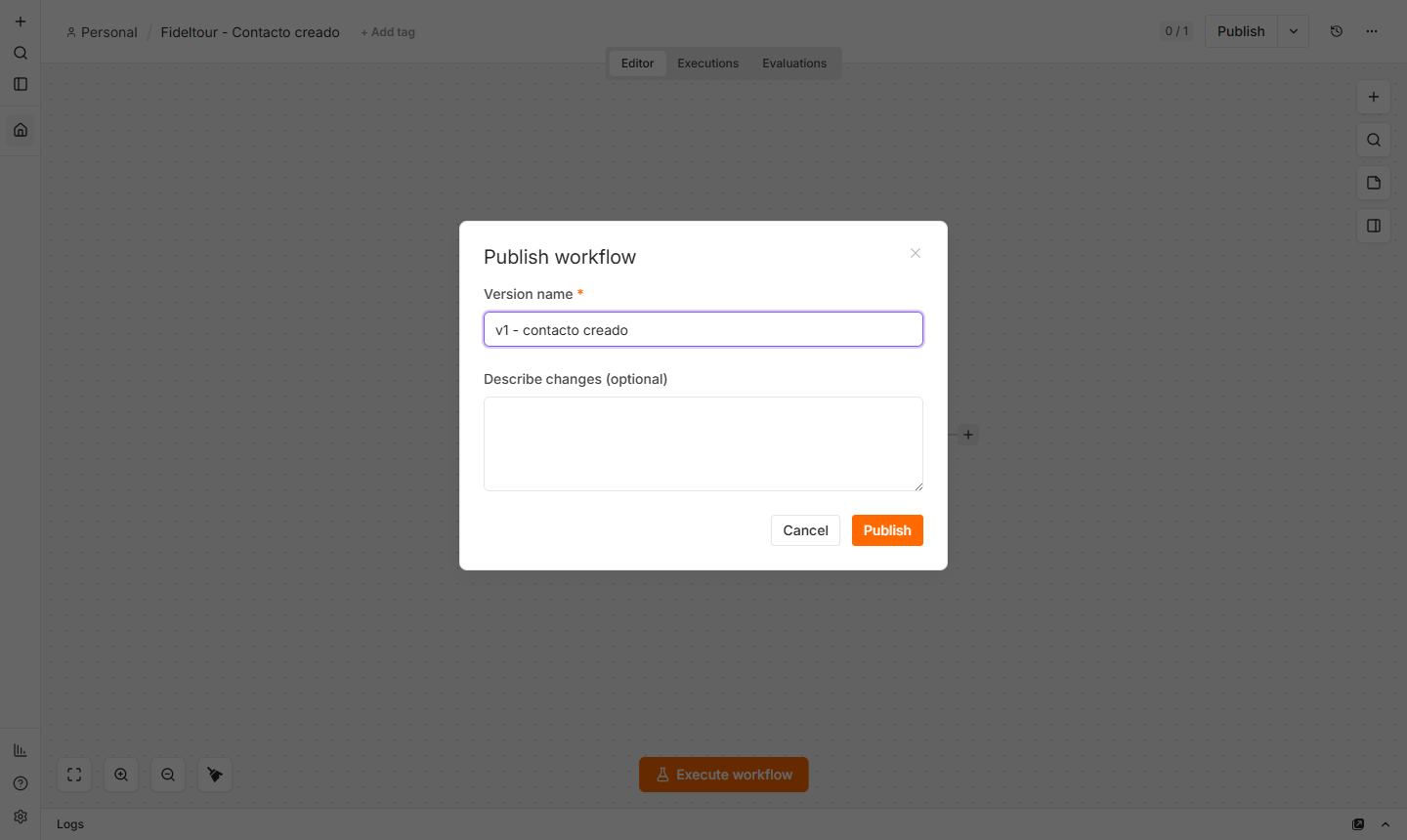
At that point the node calls POST /api/v1/webhooks/zapier-webhooks-subscriptions/ with the Production URL and the event type (5 = Contact Created). If the call fails (credential without the contacts permission, non-public URL…), n8n shows the error and does not publish the workflow.
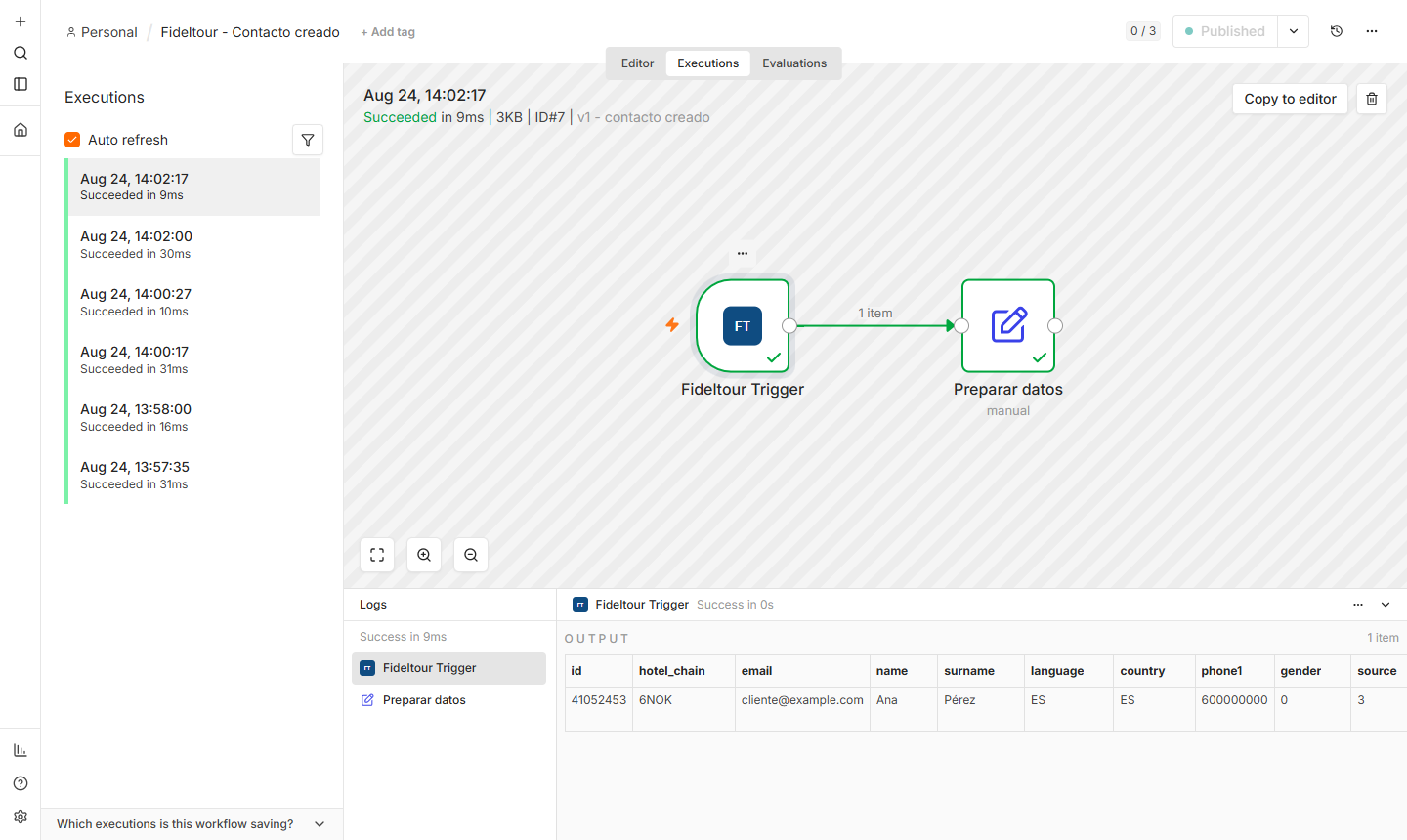
- From here on, every contact created in Fideltour triggers an execution. They're listed in the Executions tab; opening one, the Logs panel shows the payload received by the trigger (the contact's record plus
hotel_chain) and each node's output.
Full workflow:
{
  "name": "Fideltour - Contact created",
  "nodes": [
    {
      "parameters": { "event": 5 },
      "type": "n8n-nodes-fideltour.fideltourTrigger",
      "typeVersion": 1,
      "position": [0, 0],
      "name": "Fideltour Trigger",
      "credentials": { "fideltourApi": { "name": "Fideltour API" } }
    },
    {
      "parameters": {
        "assignments": {
          "assignments": [
            { "id": "x1", "name": "contact_id", "value": "={{ $json.id }}", "type": "number" },
            { "id": "x2", "name": "email", "value": "={{ $json.email }}", "type": "string" },
            { "id": "x3", "name": "greeting", "value": "=Hello {{ $json.name }} {{ $json.surname }}, welcome to {{ $json.hotel_chain }}", "type": "string" }
          ]
        },
        "options": {}
      },
      "type": "n8n-nodes-base.set",
      "typeVersion": 3.4,
      "position": [260, 0],
      "name": "Prepare data"
    }
  ],
  "connections": {
    "Fideltour Trigger": {
      "main": [[{ "node": "Prepare data", "type": "main", "index": 0 }]]
    }
  }
}
Testing without waiting for a real event: with the workflow published, a
POSTto the Production URL with a JSON body generates an execution identical to the one HotelDataHub would produce. This is useful for building the rest of the workflow with a sample payload. The payload for each event is described on the Zapier page (they're the same).
5. Check the subscription in HotelDataHub
The subscription created by the trigger can be checked with the same API user (each ApiUser only sees its own):
GET https://app.hoteldatahub.io/api/v1/webhooks/zapier-webhooks-subscriptions/
Authorization: Token <jwt>
{
  "count": 1,
  "results": [
    {
      "id": 61,
      "url": "https://n8n.mi-hotel.com/webhook/3f7c2a1e-5b7d-4c1e-9a0b-6d2e8f1a2b3c/webhook",
      "type": 5
    }
  ]
}
When you unpublish the workflow (or delete it), the node performs DELETE .../zapier-webhooks-subscriptions/{id}/ and the subscription disappears. If a workflow is deleted while the n8n instance is down, the subscription can be left orphaned: in that case, delete it by hand with the same DELETE call.
For contact and movement events to reach HotelDataHub (and from there, n8n), Fideltour must have the customer's generic webhooks configured, the same as for Zapier (see REST hooks subscription).
Common issues
| Symptom | Common cause | Solution |
|---|---|---|
| The credential fails the test (401 / 403) | Incorrect username or password, or the ApiUser doesn't have the movements permission (the test performs GET /entries/) |
Check the credentials and permissions with HotelDataHub |
| Error publishing a workflow with Fideltour Trigger | The subscription can't be registered: the event's permission is missing (contacts, movements or segments) |
Request the necessary permission for the ApiUser |
| The workflow is published but isn't receiving events | n8n isn't reachable from the internet, or WEBHOOK_URL points to an internal URL |
Expose n8n with a public URL and configure WEBHOOK_URL on the instance; republish the workflow so the correct URL gets registered |
Contact → Create returns a duplicate email error |
The email already exists in Fideltour | Search first with Get Many filtering by email, or use Web Form → Submit, which does an upsert |
Package installation fails on self-hosted n8n on Windows (tar ... Cannot open) |
n8n bug when extracting packages on Windows paths | Install it manually with npm install n8n-nodes-fideltour inside ~/.n8n/nodes and restart n8n, or use Docker/Linux |